
If you spend any amount of time working with Microsoft Purview across client tenants, you’ll know the drill: the engagement wraps up, and now someone needs a clean, readable record of exactly what was configured. Maybe it’s handover documentation for the client’s internal team. Maybe it’s an as-built snapshot before you make a change, so you can prove what existed beforehand. Maybe it’s just good internal hygiene - a point-in-time record you can refer back to without having to re-open the Purview portal and click through a dozen policies.
Whatever the trigger, the manual version of this task is tedious. You’re jumping between Get-DlpCompliancePolicy, Get-InsiderRiskPolicy, Get-RetentionCompliancePolicy and half a dozen other cmdlets, copy-pasting output into spreadsheets, and trying to make GUID-laden JSON blobs readable for a non-technical audience, or heaven forbid, doing it manually from portal to document. It’s the kind of work that’s valuable but repetitive - exactly the sort of thing worth packaging up once and reusing forever.
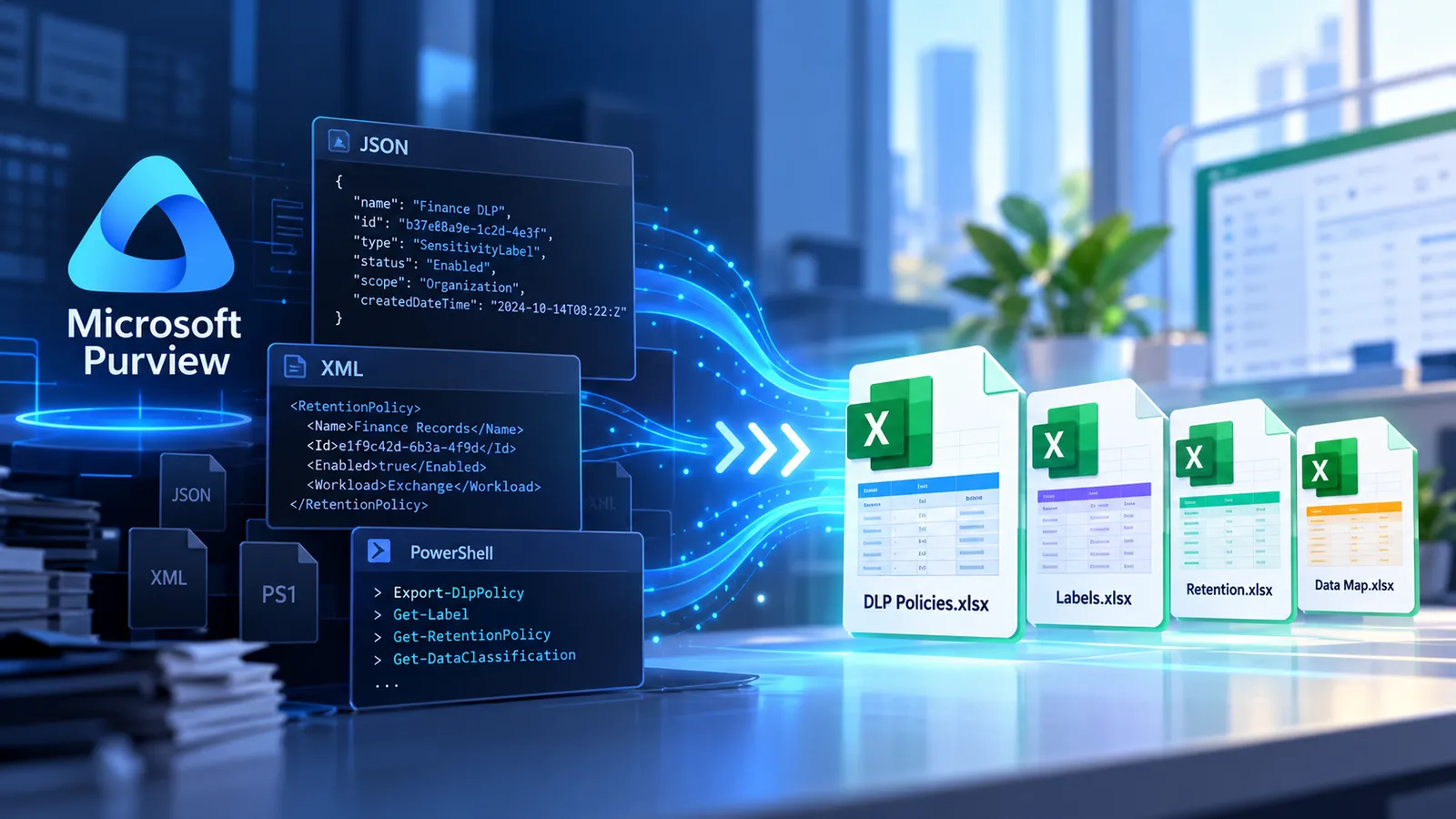
That’s what I’ve done with four new GitHub Copilot skills, built for use in VS Code. Each one wraps a read-only PowerShell export against a specific area of Microsoft Purview, then turns the result into a single, client-ready Excel workbook. No more manual transcription, no more inconsistent formatting between engagements - just a repeatable, auditable process.
Why Package This as a Skill?
Skills are a relatively new way to extend GitHub Copilot in VS Code. A skill is a folder containing a SKILL.md file - a short, structured brief that tells Copilot when to use it (via a description) and how to carry out the task - plus any supporting assets like scripts or templates. Copilot reads the description to decide whether a skill is relevant to what you’re asking for, and then follows the instructions inside it, step by step, including running any bundled scripts.
For a task like “export this tenant’s DLP configuration and build me a workbook,” that’s a perfect fit. The skill encodes the procedure once - which cmdlets to run, what the output folder should look like, how to validate the result, what caveats to flag to the client - and Copilot executes it consistently every time, regardless of who’s asking or which tenant it’s pointed at.
The Common Pattern Across All Four Skills
Before getting into each one individually, it’s worth calling out the shared design, because it’s deliberate and consistent across the set:
Read-only by design
Every export relies exclusively on Get-* cmdlets against Exchange Online / Security & Compliance PowerShell. Nothing is changed in the tenant. Sign-in is interactive (browser-based, MFA-friendly), and credentials are never handled by Copilot directly.
Raw data plus a human-readable layer
Each skill produces two things: a folder of raw JSON (or XML, in the case of sensitive information types) that preserves full fidelity for re-import or deep troubleshooting, and a single filterable Excel workbook built on top of it for people who just need to read the configuration.
Rebuildable offline
Because the raw export is kept, the Excel workbook can be regenerated later without reconnecting to the tenant at all - useful if you tweak the formatting or a client simply misplaces the file.
Built for handover
Every workbook includes a cover sheet with the client name, tenant, snapshot time and counts, and a closing reminder that the contents reveal the client’s detection and protection logic, so the file should be treated as confidential.
I’ll skip the PowerShell internals here - the scripts are short, read-only, and easy enough to review yourself. What matters for this post is what each skill produces and when you’d reach for it.
The Four Skills
1. DLP Policy Export
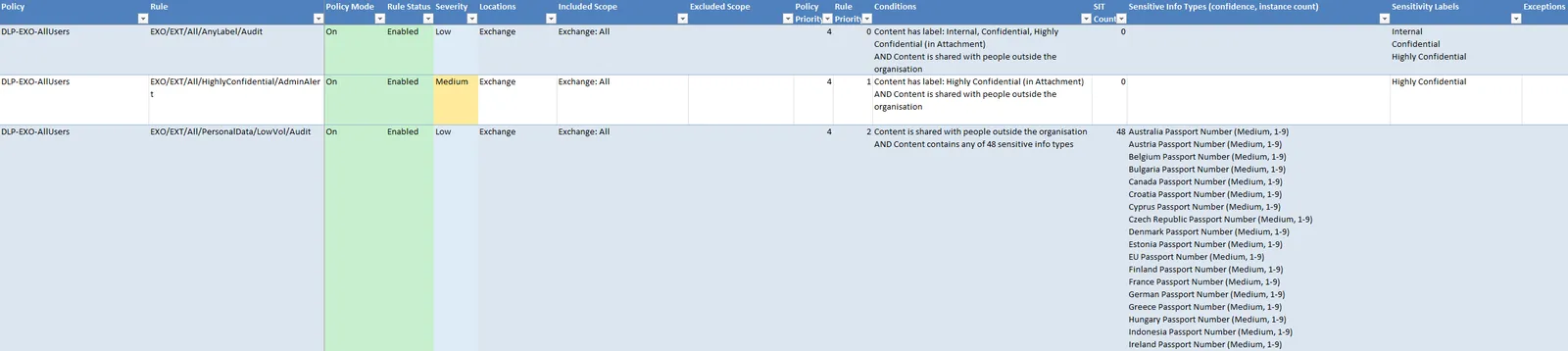
Exports every Data Loss Prevention policy and rule in a tenant - conditions, sensitive info types with confidence and instance counts, sensitivity labels, exceptions, actions, user notifications, overrides, alerts and a SIT-usage matrix. Useful for documenting DLP as-built state, or validating a before/after comparison when a client asks “what did you actually change?”
2. Insider Risk Management (IRM) Export
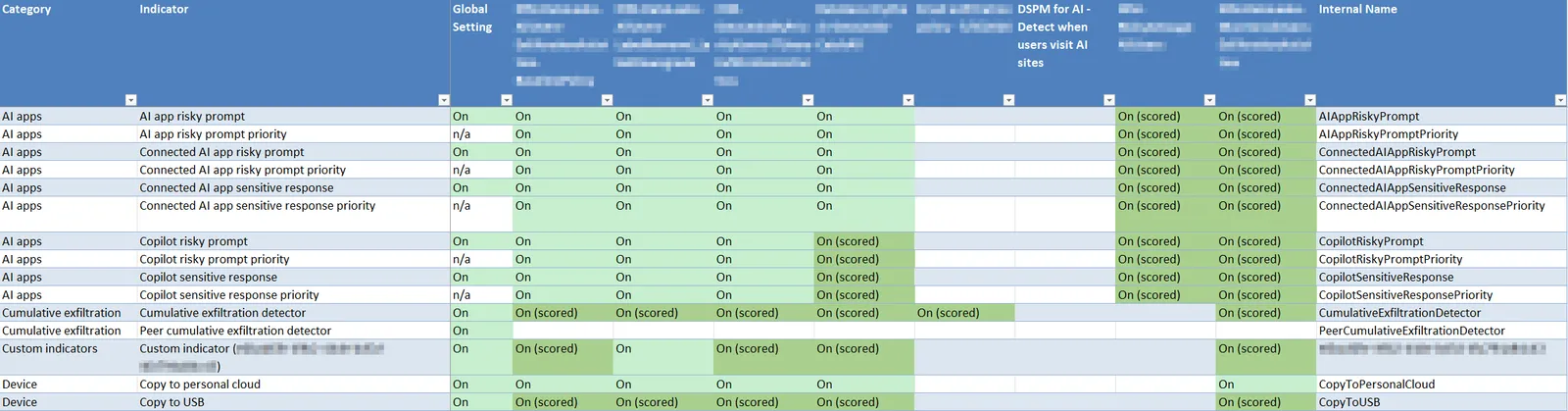
Captures every IRM policy along with the tenant-wide settings that don’t live inside a single policy object - indicator thresholds, global toggles, detection groups, priority user groups and triggering events. IRM configuration is notoriously hard to read directly from the portal, so a flattened, filterable view of indicators and their Low/Medium/High thresholds is genuinely useful for a client’s compliance or HR stakeholders, not just the security team.
3. Retention & MRM Export
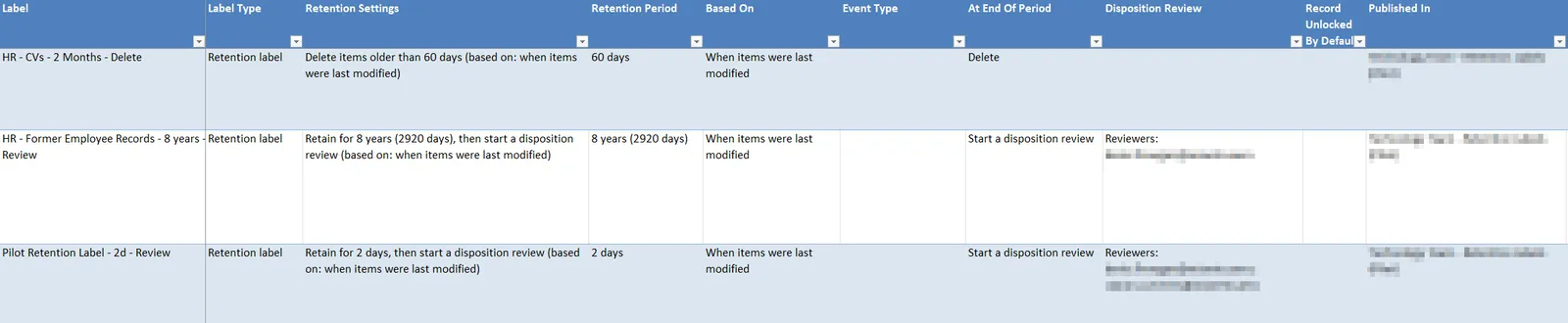
Covers Purview retention policies (including Teams and app retention), retention labels, publish and auto-apply label policies, adaptive scopes and event types, plus classic Exchange MRM retention policies and tags. This is the one I reach for most often during records-management reviews, since it ties modern retention labels back to legacy Exchange tags in a single place - handy for spotting orphaned tags or policies that were never fully migrated.
4. Custom Sensitive Information Type (SIT) Export
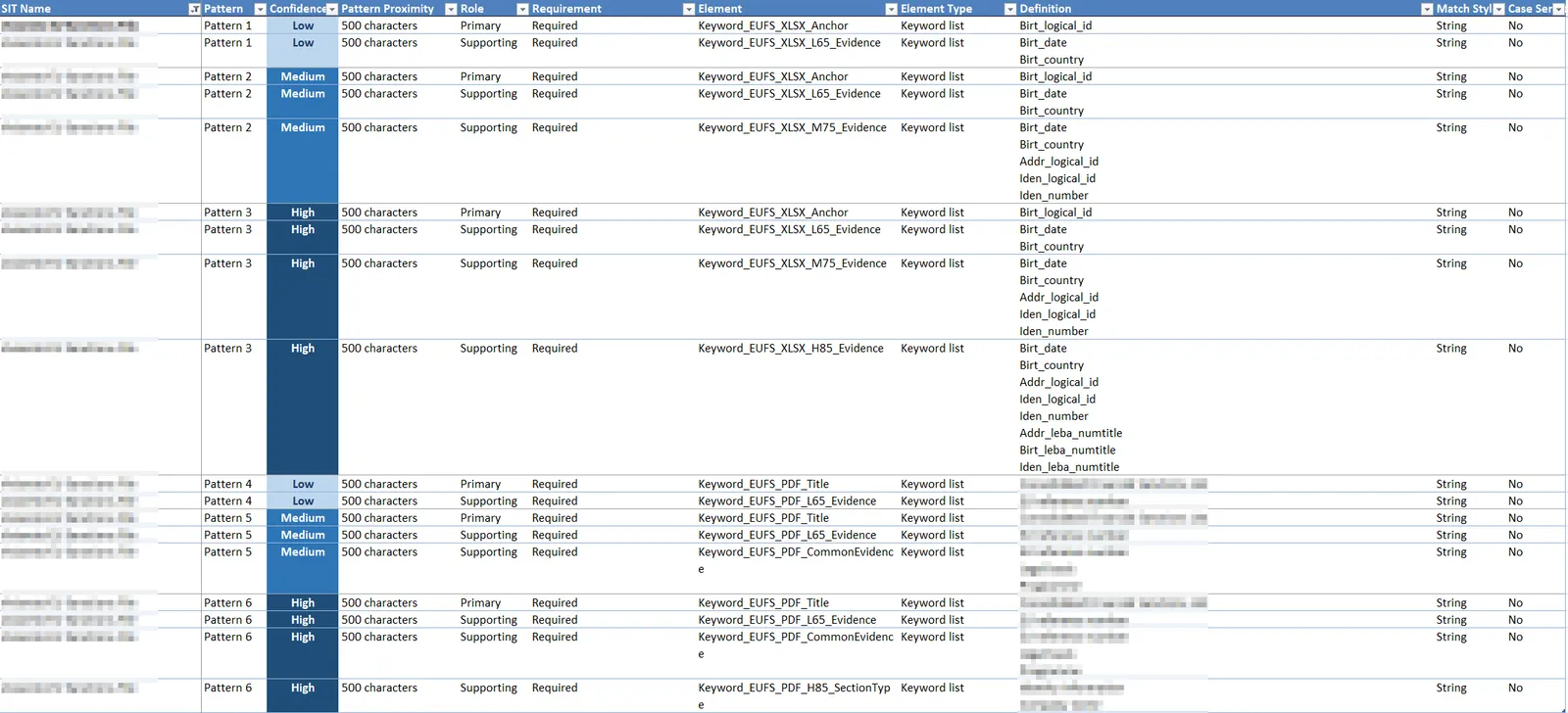
Extracts every custom SIT in a tenant - patterns, confidence levels, regexes, keyword lists, keyword dictionaries and document fingerprint thresholds - into a readable workbook. This is less about handover and more about review: it’s a fast way to audit exactly what a custom SIT is matching on, without hunting through rule package XML by hand.
How to Import and Reuse These Skills in VS Code
Skills are just files, so reusing one is mostly a matter of putting it in the right folder. Copilot in VS Code looks for skills in a few recognised locations:
| Scope | Location | Good for |
|---|---|---|
| Workspace (shared with a team) | .github/skills/<skill-name>/ |
Committing the skill to a repo so colleagues get it automatically when they clone |
| Workspace (alternate conventions) | .agents/skills/<skill-name>/ or .claude/skills/<skill-name>/ |
Teams already using those tool conventions |
| Personal (cross-workspace) | Your user-level Copilot skills folder | Skills you want available in every project, regardless of which repo you have open |
To bring one of these Purview export skills into your own setup:
- Get the skill folder. Each skill is a self-contained directory containing
SKILL.mdand ascripts/subfolder with the PowerShell (and, for the SIT skill, a Python conversion script). Copy the whole folder, not justSKILL.md. - Decide on scope. If it’s just for you, drop it in your personal skills folder so it’s available across every workspace. If you want a team to share it, commit it into the repo under
.github/skills/<skill-name>/. - Open GitHub Copilot Chat in VS Code. No reload or registration step is needed - Copilot reads the
descriptionfield from everySKILL.mdit can find and matches it against what you ask for. - Just describe what you want. You don’t need to remember an exact command. Asking something like “export the DLP configuration for Contoso Ltd and build me a workbook” is enough for Copilot to recognise the relevant skill and follow its procedure.
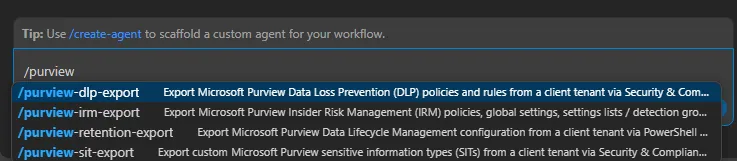
- Or invoke a skill directly with a slash command. If you’d rather be explicit than rely on Copilot matching your description, each skill is also available as its own slash command in chat:
/purview-dlp-export/purview-irm-export/purview-retention-export/purview-sit-export
- Follow the prompts. The skill will ask for the client name and admin UPN (or the path to an existing export folder if you’re just rebuilding a workbook), then run the export interactively - you’ll get a browser sign-in prompt for MFA, exactly as you would running the script yourself.
- Review before you send it anywhere. Each skill includes its own validation checklist - spot-checking a few rows against the portal, confirming counts match the export summary - before the workbook goes anywhere near a client inbox.
Closing Thoughts
None of these four skills do anything you couldn’t do manually with PowerShell and a spreadsheet - that’s not really the point. The value is in never having to remember the right cmdlet, the right JSON-to-Excel mapping, or the right disclaimer to put on the cover sheet ever again. Once the knowledge is captured in a skill, it’s consistent, shareable, and it keeps getting better every time someone spots an edge case in a new tenant and folds the fix back in.
If you’re doing repeat documentation work of any kind - Purview, or otherwise - it’s worth asking whether the next one should be a skill instead of a one-off script.
You can grab the skills from my GitHub here: https://github.com/NateHutch365/Agent-Skills